
Set up Conncord
Create a Conncord account, connect HubSpot or Attio, add the Conncord bot to Discord, and finish the five-step setup in about two minutes.
Setting up Conncord takes about two minutes. The dashboard walks you through five steps, and you can come back to any of them later.
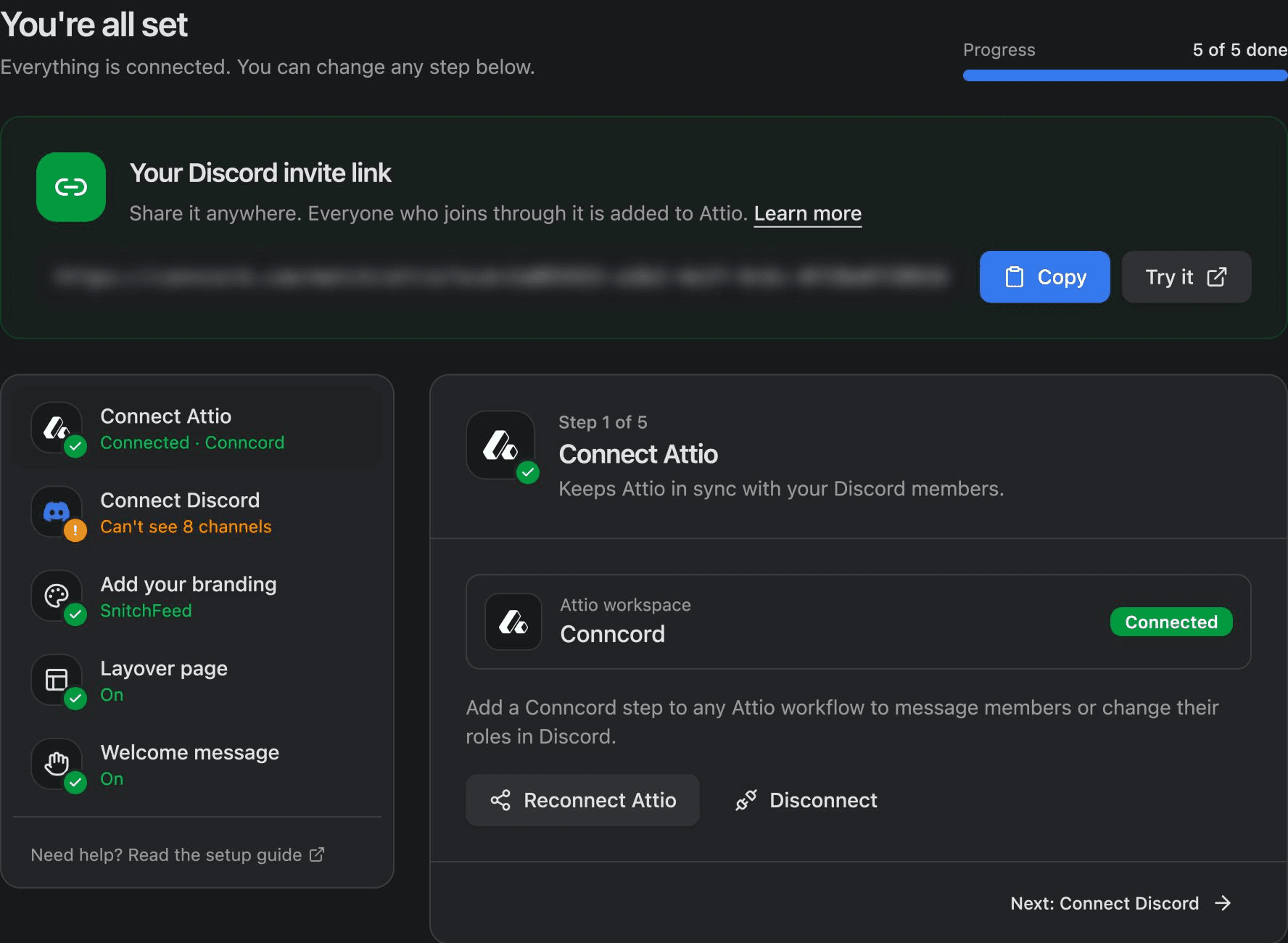
Before you begin
You need to be an admin in your CRM (HubSpot or Attio) and to have the Manage Server permission in Discord. Conncord works with one CRM per account.
Create your account
Go to conncord.com/app/login, enter your work email and click Email me a sign-in code. If you don't have an account yet, the form switches to sign-up. Conncord emails you a 6-digit code that expires in 15 minutes: type it on the sign-in page, or click Continue to sign in in the email and then Sign in.
New accounts start a 7-day free trial with every feature and 100 actions, no credit card required. See Plans and billing.
The setup checklist
Connect your CRM
Pick the CRM you use, HubSpot or Attio, and click Connect. Both include workflow messages and roles, member linking, the welcome message, invite links and Layover. Ticket Sync is HubSpot only. See HubSpot vs. Attio.
You can switch CRMs later with Switch CRM at the top of the dashboard. Disconnect the current CRM first.
Connect Discord
Click Connect Discord, pick your server and click Authorize. This adds the Conncord bot to your server.
The Server check then shows what Conncord can and can't do in your server. Most servers need one or two quick fixes in Discord: moving the Conncord role up, and adding Conncord to private channels. See Discord bot setup.
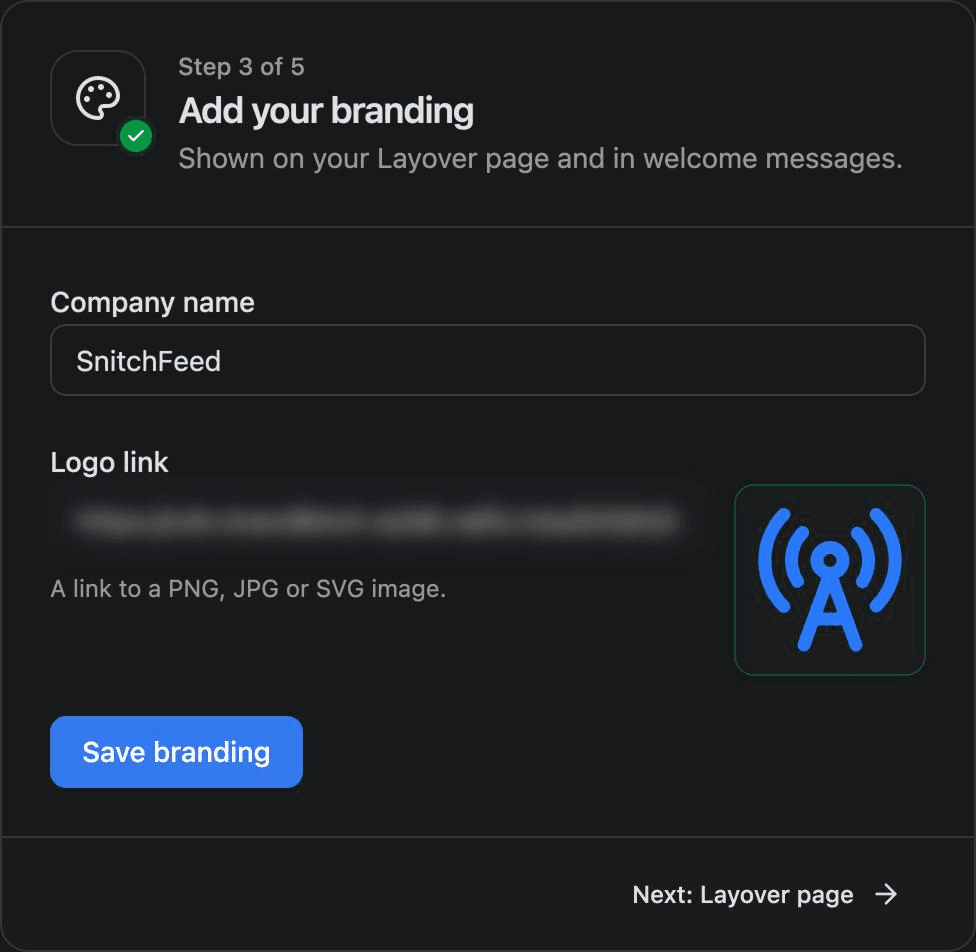
Add your branding
Enter your Company name and a Logo link (a PNG, JPG or SVG image), then click Save branding. They appear on your Layover page and in welcome messages.
Layover page (optional)
Turn on Show Layover page to show a branded page before people join your server. You can also turn on Ask for email. See Layover.
Welcome message (optional)
Turn on Send a welcome message, pick a channel and save. New members who skip your invite link get a message with a Register button, so they're still linked to your CRM. See Welcome message.
Your Discord invite link
Once your CRM and Discord are connected, the dashboard shows Your Discord invite link. Everyone who joins through it is added to your server and linked to a CRM record. How you use it depends on your CRM:
Next steps
Last updated on
Quick Start
Conncord is the native Discord integration for HubSpot and Attio. Guides for setup, workflow messages and roles, member linking, Layover and Ticket Sync.
Discord bot setup
The permissions the Conncord Discord bot needs, how to fix role order and private channels, and how to read the Server check.