
Assign and remove Discord roles from Attio workflows
Add Conncord's Assign and Remove Discord role steps to Attio workflows to give or take away Discord roles for a person, like when a deal is won.
The Assign Discord role and Remove Discord role steps give a Discord role to the Discord member linked to an Attio person, or take it away. Use them to unlock customer channels when a deal is won, and remove access when a plan ends. They work on every Conncord plan.
Using HubSpot? See Assign and remove Discord roles from HubSpot workflows.
Before you begin
- Connect Attio and add the Conncord bot to your Discord server.
- Move the Conncord role above the roles you want to manage. See Let Conncord assign a role.
- The people need to be linked to a Discord member. People get linked when they join through your invite link, Layover or the welcome message. See Link Discord members to Attio people.
Typing a Discord ID into a person's Conncord Discord ID attribute doesn't link them. The role steps use the members Conncord linked itself.
Create or open a workflow
In Attio, go to Workflows and click New workflow, or open an existing one. Choose a trigger that gives you a person, for example a record action on People, or a deal changing stage.
Add the Conncord step
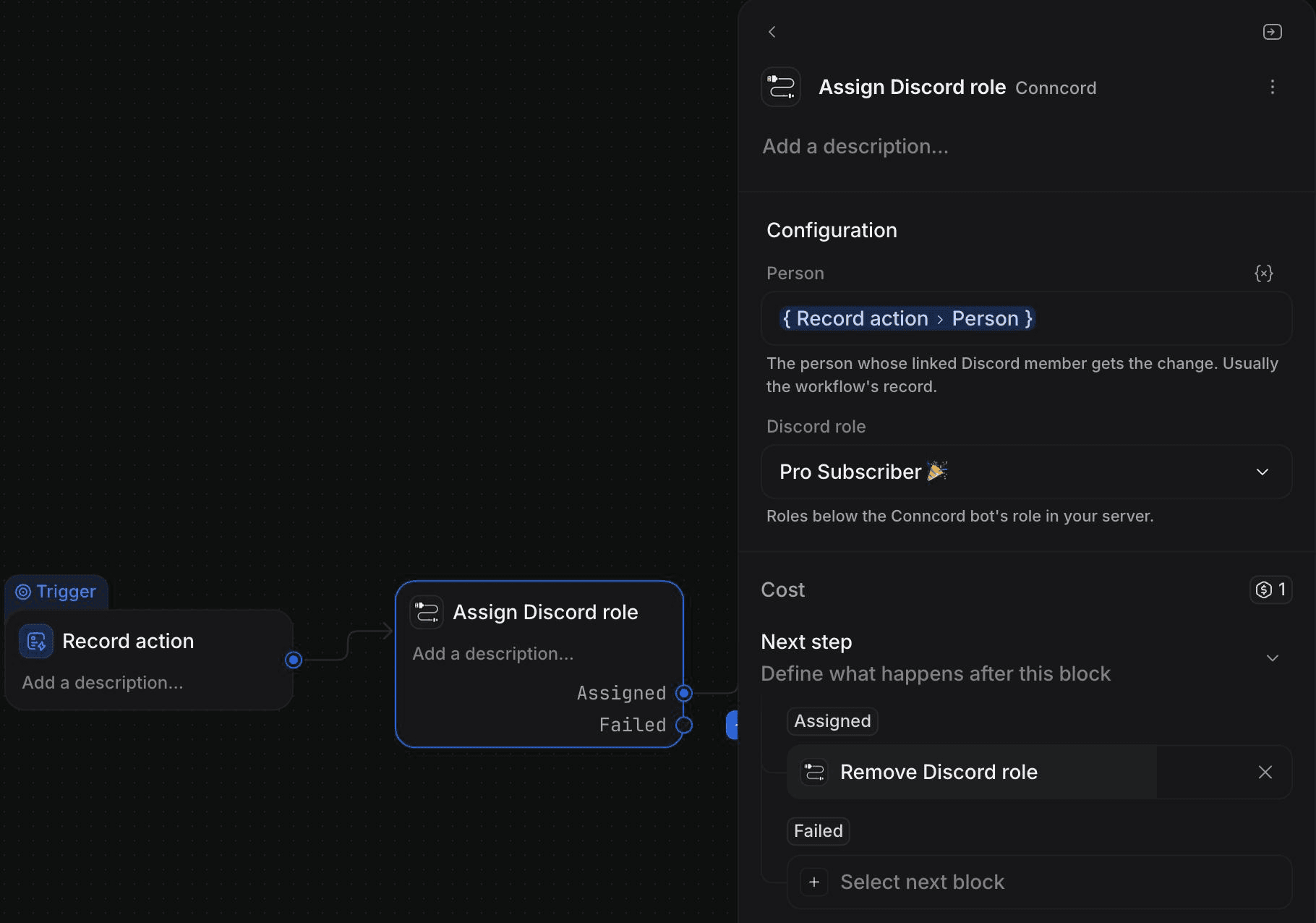
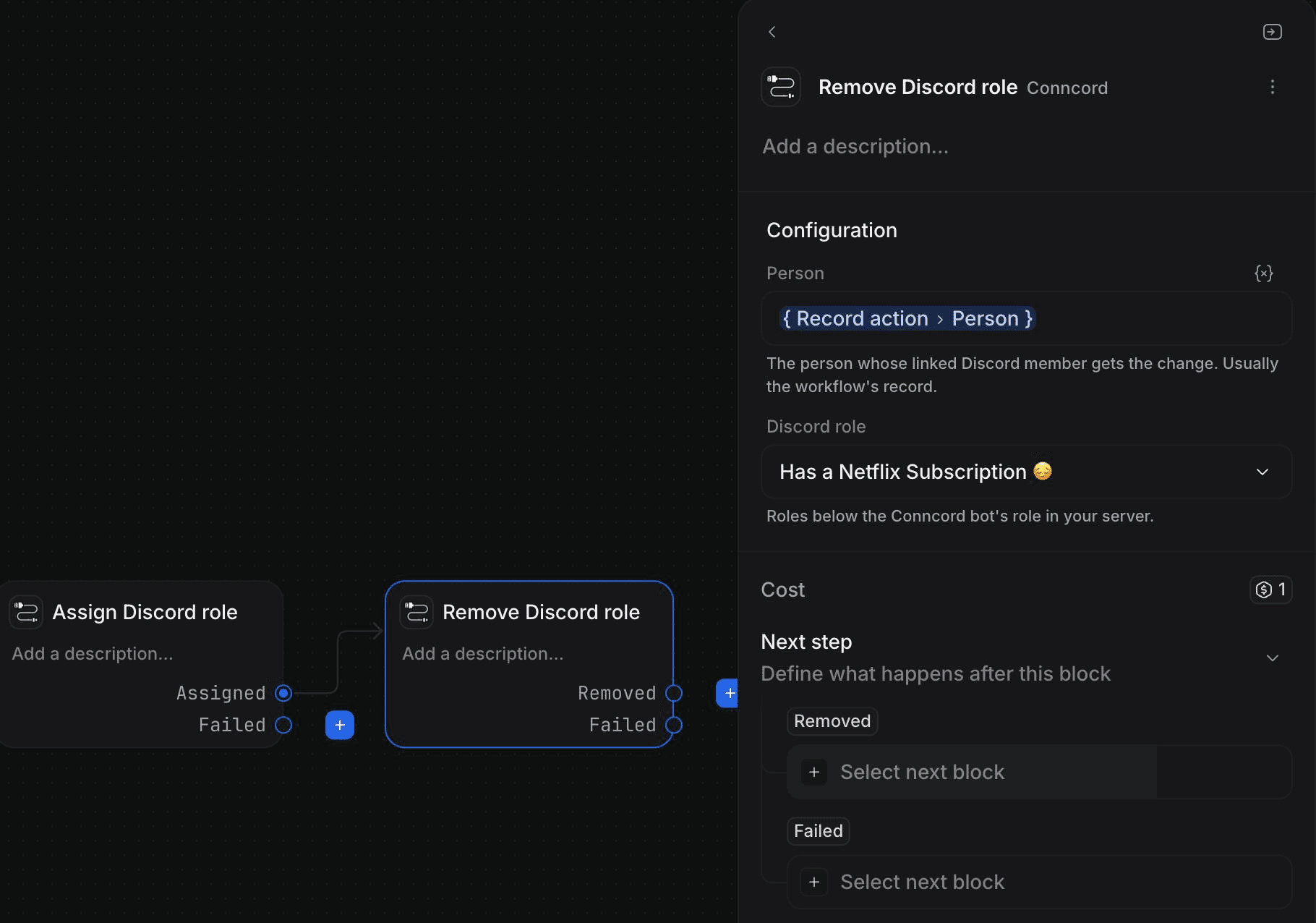
Click Add block, search for "Discord", and choose Assign Discord role or Remove Discord role under Conncord.
Pick the person and the role
- Person: the person whose linked Discord member gets the change. Usually the workflow's trigger record, or a person from an earlier block, such as a deal's contact.
- Discord role: the role to assign or remove. The list shows only roles below the Conncord bot's role in your server.
Handle failures (optional)
The step has two paths: Assigned (or Removed) and Failed. Connect a block to Failed to handle people who aren't linked yet, for example to email them your invite link. The Failed path outputs error_code and error_message.
Publish the workflow
Publish the workflow and make sure it's Live.
Don't see the role you need?
Conncord can only manage roles below its own role in your server's role list, so roles above it are hidden. In Discord, go to Server Settings → Roles and drag Conncord above the role. Roles managed by Discord or another app (bot roles, Server Booster) can't be assigned by anyone.
Examples
| Trigger | Step |
|---|---|
| Deal moves to Won | Assign Customer to the deal's person |
| Person added to a VIP list | Assign VIP |
| Subscription attribute changes to Canceled | Remove Pro Member |
| Assign Trial, then a 14-day delay | Remove Trial |
If the step fails
The step takes the Failed path with a message that says how to fix it. The most common causes:
- The person isn't linked to a Discord member (DISCORD_ID_MISSING).
- The member left your server (MEMBER_NOT_IN_SERVER).
- The role sits above Conncord's role (ROLE_ABOVE_BOT).
After you fix the problem, run the workflow again for that person. If Conncord or Discord is briefly unavailable, Attio retries the step automatically, and each run changes the role only once.
Each role change uses one action from your plan. If the member already had the role (or didn't have it, for a removal), the step still succeeds but doesn't use one. See Plans and billing.
Last updated on
Send Discord messages from Attio workflows
Add Conncord's Send Discord message step to an Attio workflow to post to a Discord channel, with record attributes in the text.
Link Discord members to Attio people
Match Discord server members to Attio people by email with Conncord's invite link, Layover and welcome message, and save their Discord details.