
Discord bot setup
The permissions the Conncord Discord bot needs, how to fix role order and private channels, and how to read the Server check.
The Conncord bot posts your workflow messages, assigns and removes roles, adds members who join through your invite link, and syncs forum posts to tickets. It asks only for the permissions those features need, and never for Administrator.
Add the bot to your server
In your Conncord dashboard, open Connect Discord and click Connect Discord. Pick your server, click Continue, then Authorize. You need the Manage Server permission in that server.
Permissions the bot asks for
| Permission | What Conncord uses it for |
|---|---|
| View Channel, Send Messages, Embed Links | Post workflow messages and welcome messages in your channels |
| Manage Roles | Assign and remove roles from workflows |
| Create Instant Invite | Add members who join through your invite link or Layover |
| Read Message History | Read the first message of a forum post to use as the ticket description |
| Manage Threads | Update forum post tags when a ticket changes stage |
| Send Messages in Threads | Reply in ticket threads with the Register prompt |
If a permission is missing, the Server check lists it. Click Reconnect Discord to grant it again.
The Server check
Open Connect Discord in your dashboard to see the Server check. It shows what Conncord can do in your server, and what needs a fix. Click How to fix next to an item for steps, and Check again after you change something in Discord.
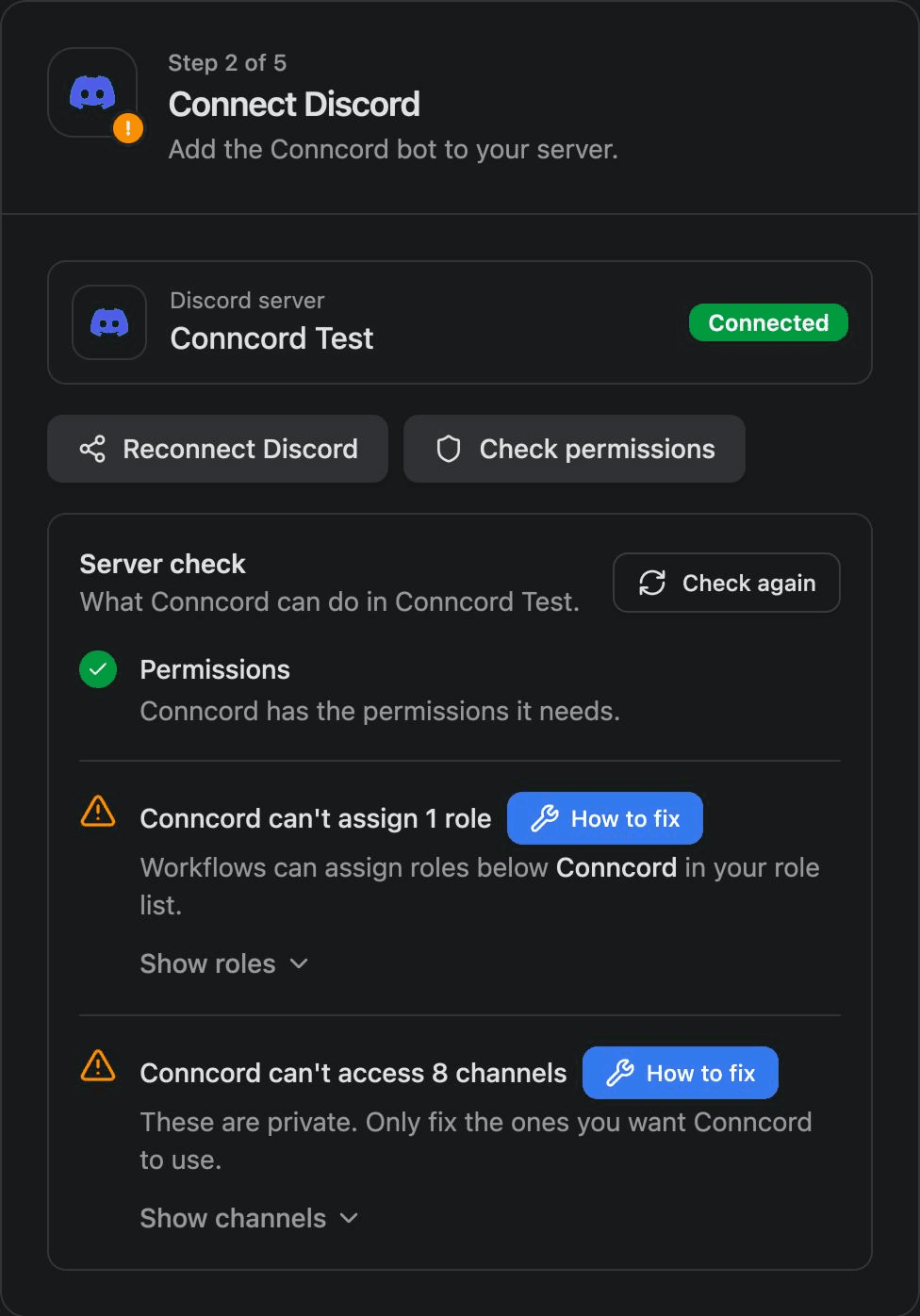
Missing permissions block setup. Role order and private channels don't: fix them only for the roles and channels you want Conncord to use.
Let Conncord assign a role
Discord only lets a bot change roles that sit below its own role in the server's role list. Discord puts a new bot's role near the bottom, so at first Conncord often can't assign anything.
In Discord, open Server Settings → Roles and drag the Conncord role above every role you want your workflows to assign or remove.
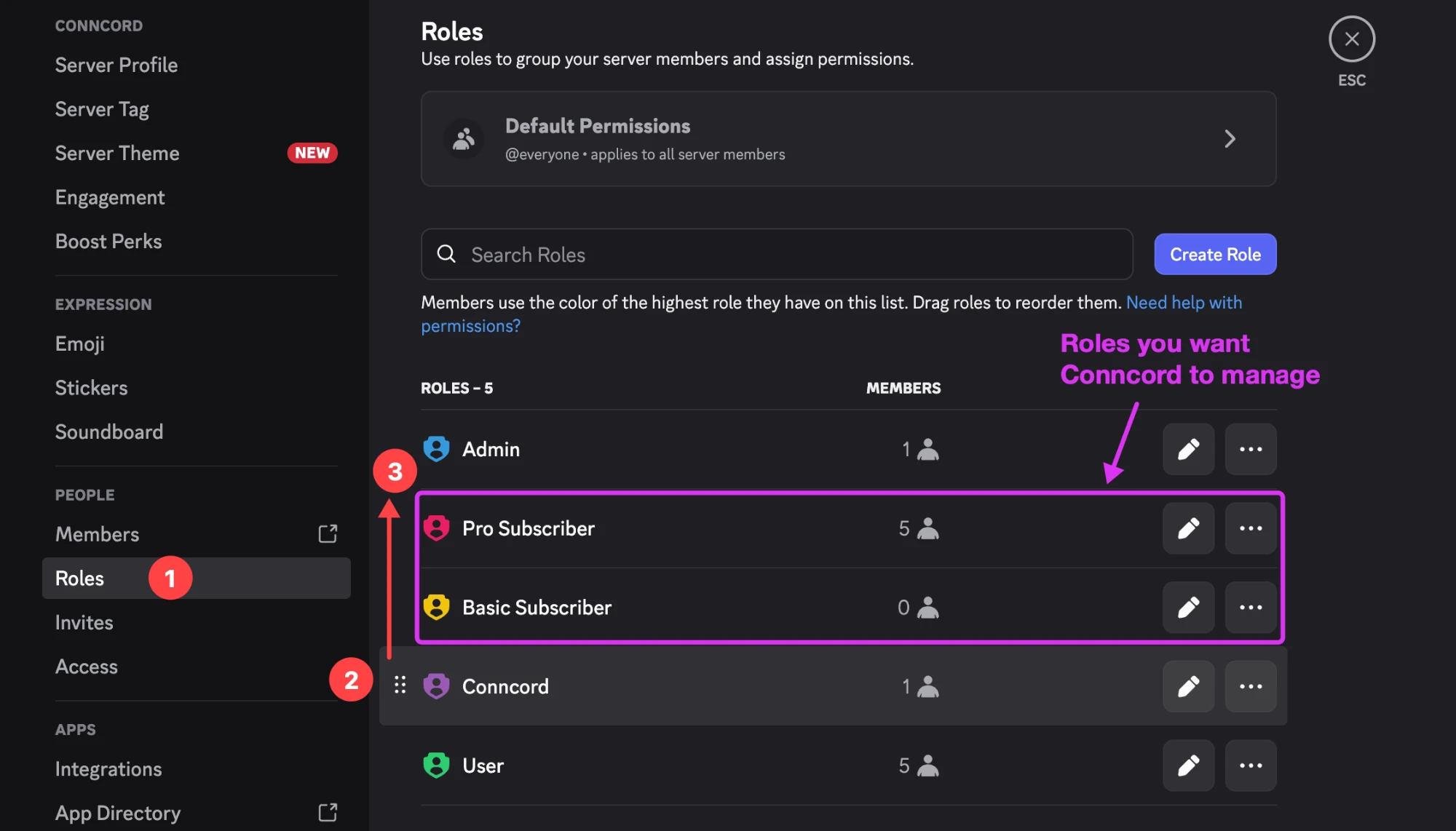
A few roles can never be assigned by any bot: @everyone, and roles managed by Discord or another app (bot roles, the Server Booster role). Roles Conncord can't assign are hidden from the role pickers in HubSpot and Attio.
Give Conncord access to a private channel
Conncord can only use channels it can see. To add it to a private channel or forum, open the channel's settings in Discord, go to Permissions → Add members or roles, select Conncord and click Done.
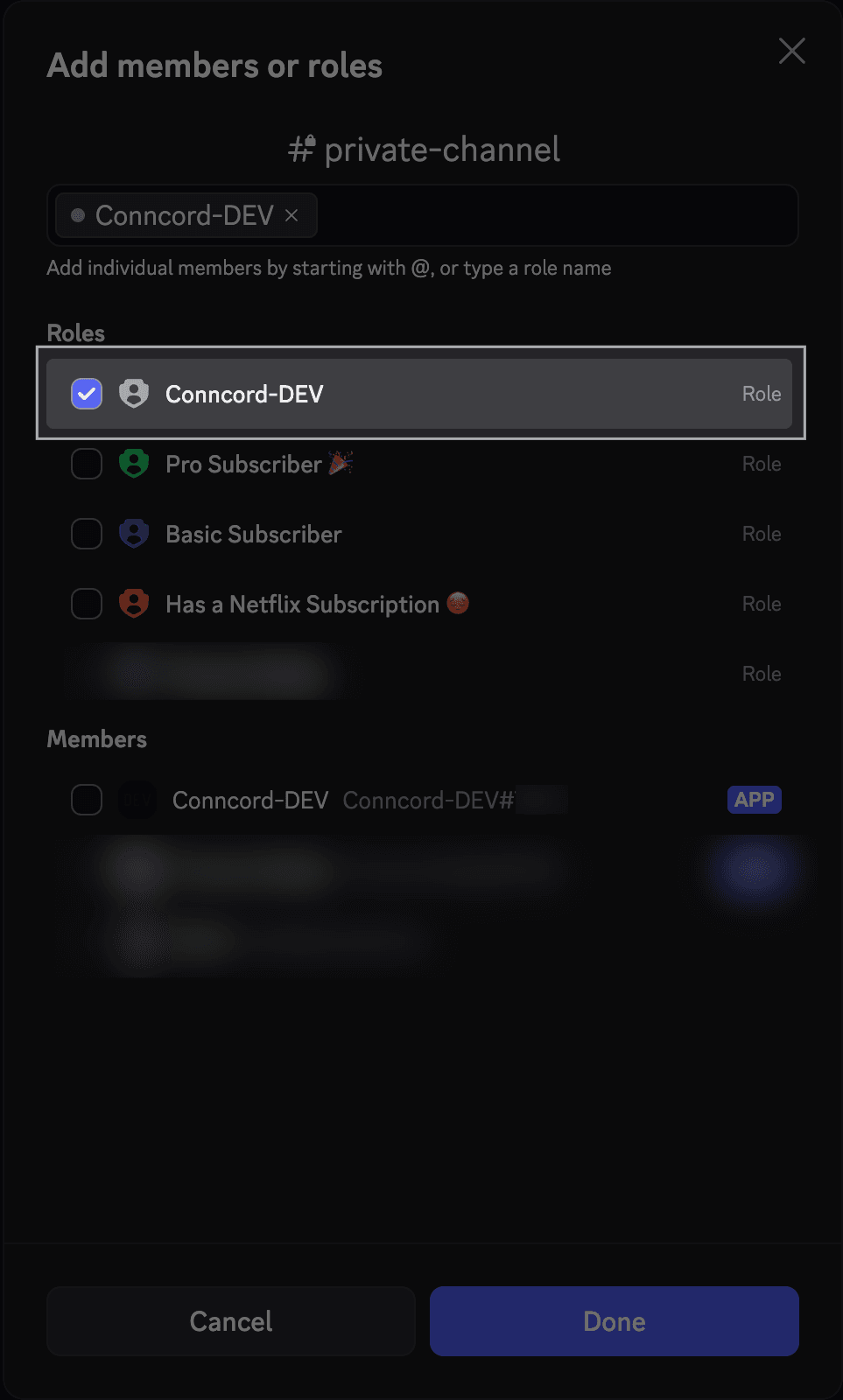
For Ticket Sync forums, Conncord also needs Send Messages in Threads, Manage Threads and Read Message History in that forum.
Channels Conncord can't post in are hidden from the channel pickers in HubSpot and Attio, so if a channel is missing there, check here first.
Last updated on
Set up Conncord
Create a Conncord account, connect HubSpot or Attio, add the Conncord bot to Discord, and finish the five-step setup in about two minutes.
HubSpot vs. Attio: what Conncord supports
Compare Conncord's Discord features for HubSpot and Attio: workflow messages, roles, member linking, Layover and Ticket Sync, and how they differ.