
Send Discord messages from HubSpot workflows
Use the Conncord Send Discord Message action to post to a Discord channel from any HubSpot workflow, with HubSpot properties and mentions in the text.
The Send Discord Message action posts a message to a channel in your Discord server whenever a HubSpot workflow reaches it. Use it to announce closed deals, new sign-ups, form submissions or anything else HubSpot can trigger on. It works in workflows for any record type, and on every Conncord plan.
Using Attio? See Send Discord messages from Attio workflows.
Before you begin
Connect HubSpot and add the Conncord bot to your Discord server.
Create or open a workflow
In HubSpot, go to Automation → Workflows and create a workflow, or open an existing one. Set any enrollment trigger, for example "Deal stage is Closed won" or "Form submission".
Add the Conncord action
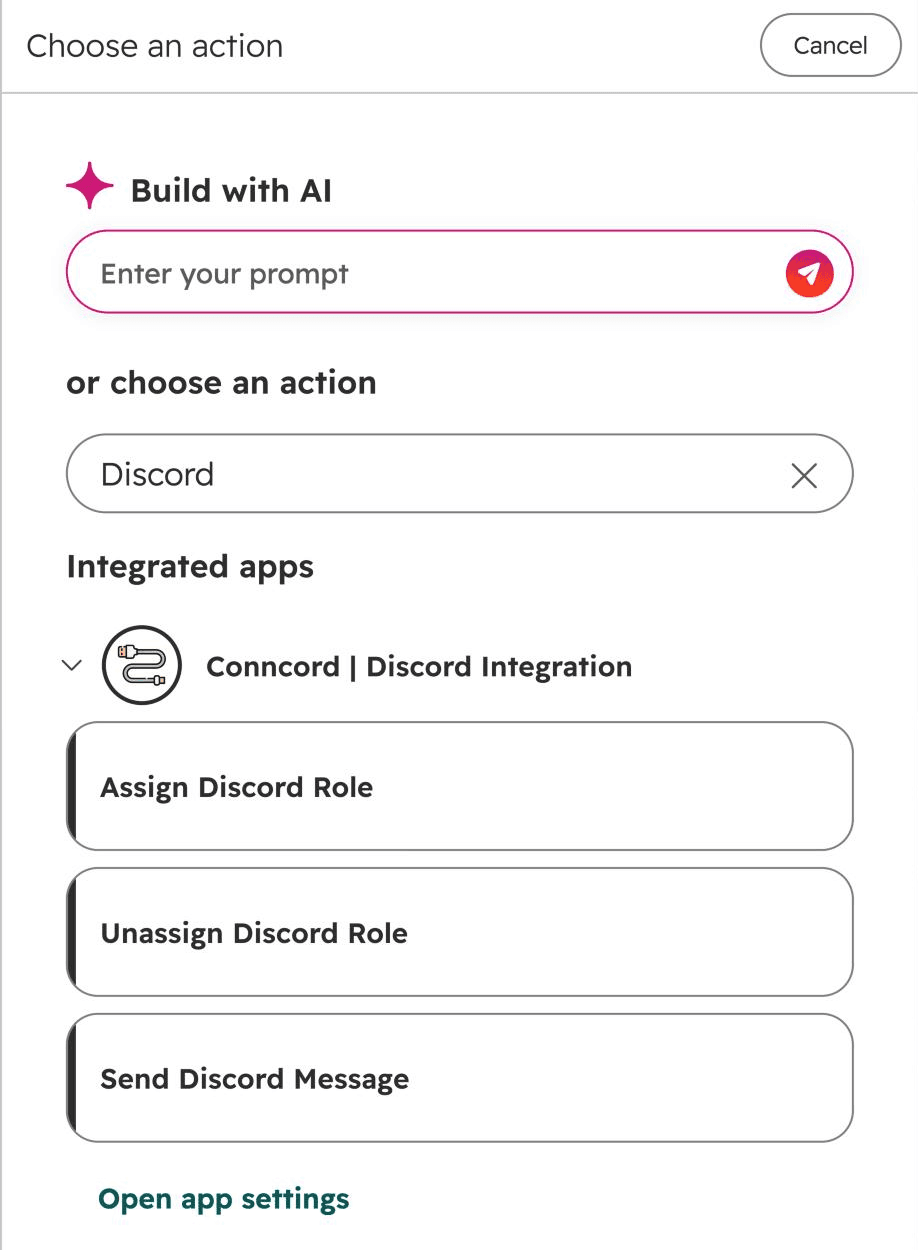
Click + to add an action. Find Conncord under the integrated apps in the action list and choose Send Discord Message.
Pick a channel and write the message
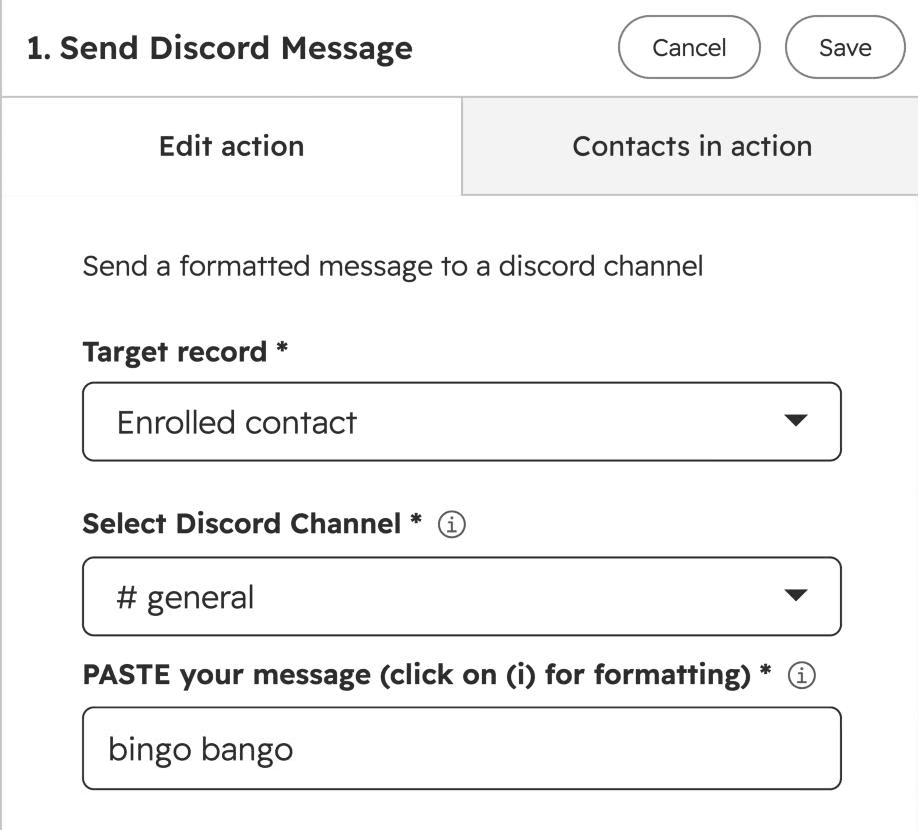
- Target record: leave it as the enrolled record.
- Select Discord Channel: the channel to post in. The list shows only text channels Conncord can post in.
- Message: the text to send. Insert HubSpot properties of the enrolled record, for example the contact's first name or the deal amount.
Save and turn on the workflow
Review and turn on the workflow. Each time a record reaches the action, Conncord posts the message.
Don't see the channel you need?
The list only shows channels Conncord can post in. For a private channel, open its settings in Discord, go to Permissions → Add members or roles, and add Conncord. It shows up within a minute. See Discord bot setup.
Formatting and mentions
Messages support Discord markdown, such as **bold**, *italic*, lists and links. Messages can be up to 2,000 characters.
| To mention | Write | Example |
|---|---|---|
| A member | <@DISCORD_ID> | <@ + the contact's Conncord Discord ID property + > |
| A role | <@&ROLE_ID> | <@&1286943609211588629> |
To find a role ID, turn on Developer Mode in Discord (User Settings → Advanced), then right-click the role and click Copy Role ID.
@everyone and @here never ping anyone when Conncord posts them.
If the action fails
The action shows as failed in the workflow history with a message that says how to fix it, and the workflow keeps going. Branch on the errorCode output to handle failures, for example to notify your team. After you fix the problem, re-enroll the record. See Workflow errors.
Each message sent uses one action from your plan. Failed actions don't. See Plans and billing.
Last updated on
Connect HubSpot to Conncord
Install Conncord in HubSpot: the permissions it asks for, the Discord contact properties it creates, and how to disconnect or switch to Attio.
Assign and remove Discord roles from HubSpot workflows
Use Conncord's Assign and Unassign Discord Role actions to give or remove Discord roles when HubSpot contacts change, like when a deal closes.