
Workflow errors
What each Conncord error code means in HubSpot workflow actions and Attio workflow steps, and how to fix it.
When a Conncord action in a HubSpot workflow, or a Conncord step in an Attio workflow, can't run, it fails with a message that says what happened and how to fix it. The message ends with an error code. Find the code below for more detail.
How failures work
HubSpot. The action shows as failed in the workflow's history, and the workflow keeps going. The action outputs errorCode and errorMessage, so later steps can branch on them or notify you. After you fix the problem, re-enroll the record to run the action again.
Attio. The step takes its Failed path, with the outputs error_code and error_message. Connect a block to Failed to handle it, for example to notify your team. After you fix the problem, run the workflow again for that record.
Temporary problems, such as Discord being briefly unavailable, aren't failures: HubSpot and Attio retry the action automatically, and Conncord makes sure each run happens only once. Failed actions and steps don't use any of your plan's actions.
The Activity page in your dashboard lists every failure with its message.
Plan and connection
SUBSCRIPTION_EXPIRED
Your Conncord trial or subscription has ended. Choose a plan on the billing page.
USAGE_LIMIT
Your plan's actions for this month are used up, so Conncord paused workflow actions, member linking and new tickets until they reset. Upgrade on the billing page to resume now. See what counts as an action.
ATTIO_NOT_CONNECTED
Attio only. The Attio workspace running the workflow isn't connected to a Conncord account, for example because it was disconnected. Open your dashboard, connect Attio and Discord, then run the workflow again. See Connect Attio.
DISCORD_NOT_CONNECTED
No Discord server is linked to your Conncord account. Open your dashboard and connect Discord.
BOT_NOT_IN_SERVER
The Conncord bot is no longer in your Discord server, for example because it was removed. Open your dashboard and click Reconnect Discord.
DISCORD_PERMISSION_DENIED
Discord refused the action because Conncord is missing a permission. Its access may have changed recently. Open your dashboard, check the Server check under Connect Discord, and fix what it lists. See Discord bot setup.
DISCORD_REQUEST_FAILED
Discord rejected the action with an error Conncord doesn't recognize. The message includes Discord's own text. Check the action's settings and run it again. If it keeps failing, email [email protected].
INTERNAL_ERROR
Attio only. Conncord couldn't finish the step and stopped retrying it. Run the workflow again. If it keeps failing, email [email protected].
Assign and remove roles
DISCORD_ID_MISSING
Conncord doesn't know which Discord member to change.
- HubSpot: the action's Contact's Discord ID field is empty for this contact. Only contacts who joined or registered through Conncord have a Discord ID. Make sure the field uses the contact's Conncord Discord ID property.
- Attio: no Discord member is linked to this person. Only people who joined or registered through Conncord are linked. Check the step's Person field.
To link more members, share your invite link or turn on the welcome message. See HubSpot member linking or Attio member linking.
If the message says some members are still waiting to be linked, your plan doesn't include member linking, your actions are used up, or your CRM needs reconnecting. They're linked once that's fixed.
DISCORD_ID_INVALID
HubSpot only. The Discord ID isn't a number. A Discord ID looks like 1286943609211588629, not a username. Use the Conncord Discord ID property instead of the Discord username.
MEMBER_NOT_IN_SERVER
The member isn't in your Discord server. They may have left or been removed, or the Discord ID on the contact is wrong. Have them rejoin through your Conncord invite link.
ROLE_NOT_SELECTED
The action or step has no role selected. Edit it and choose one.
ROLE_DELETED
The selected role no longer exists in your Discord server. Edit the action or step and choose the role again.
ROLE_MANAGED
The role is managed by Discord or another app, such as a bot's role or the Server Booster role. No one can assign or remove these. Choose a different role.
ROLE_ABOVE_BOT
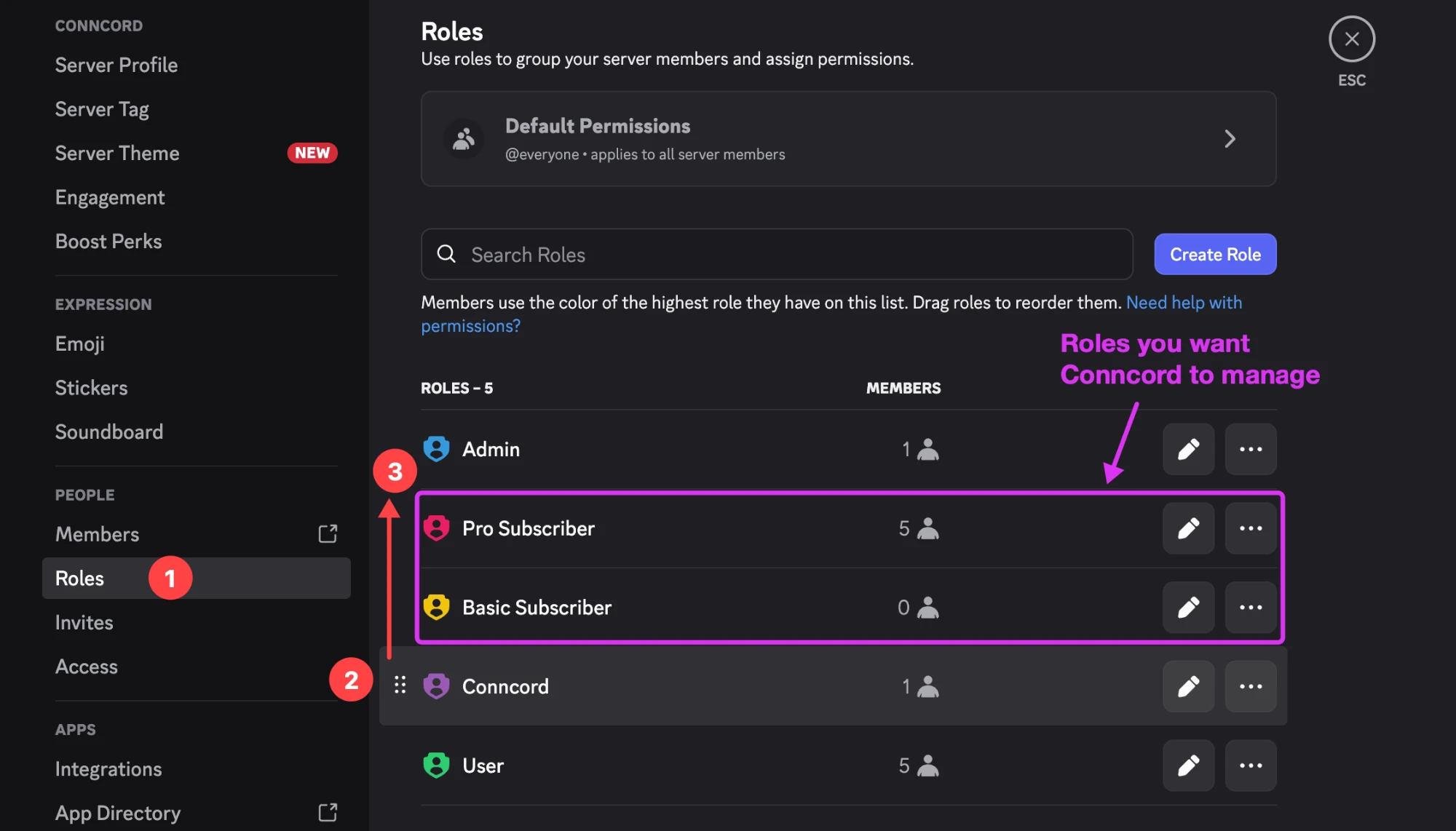
Conncord can only change roles that sit below its own role in your server's role list. In Discord, open Server Settings → Roles and drag the Conncord role above the role you want to manage.
BOT_MISSING_MANAGE_ROLES
The Conncord bot doesn't have the Manage Roles permission. Open your dashboard and click Reconnect Discord to grant it.
Send messages
CHANNEL_NOT_SELECTED
The action or step has no channel selected. Edit it and choose one.
CHANNEL_NOT_FOUND
The selected channel was deleted, or it isn't a text channel. Edit the action or step and choose the channel again.
CHANNEL_NO_ACCESS
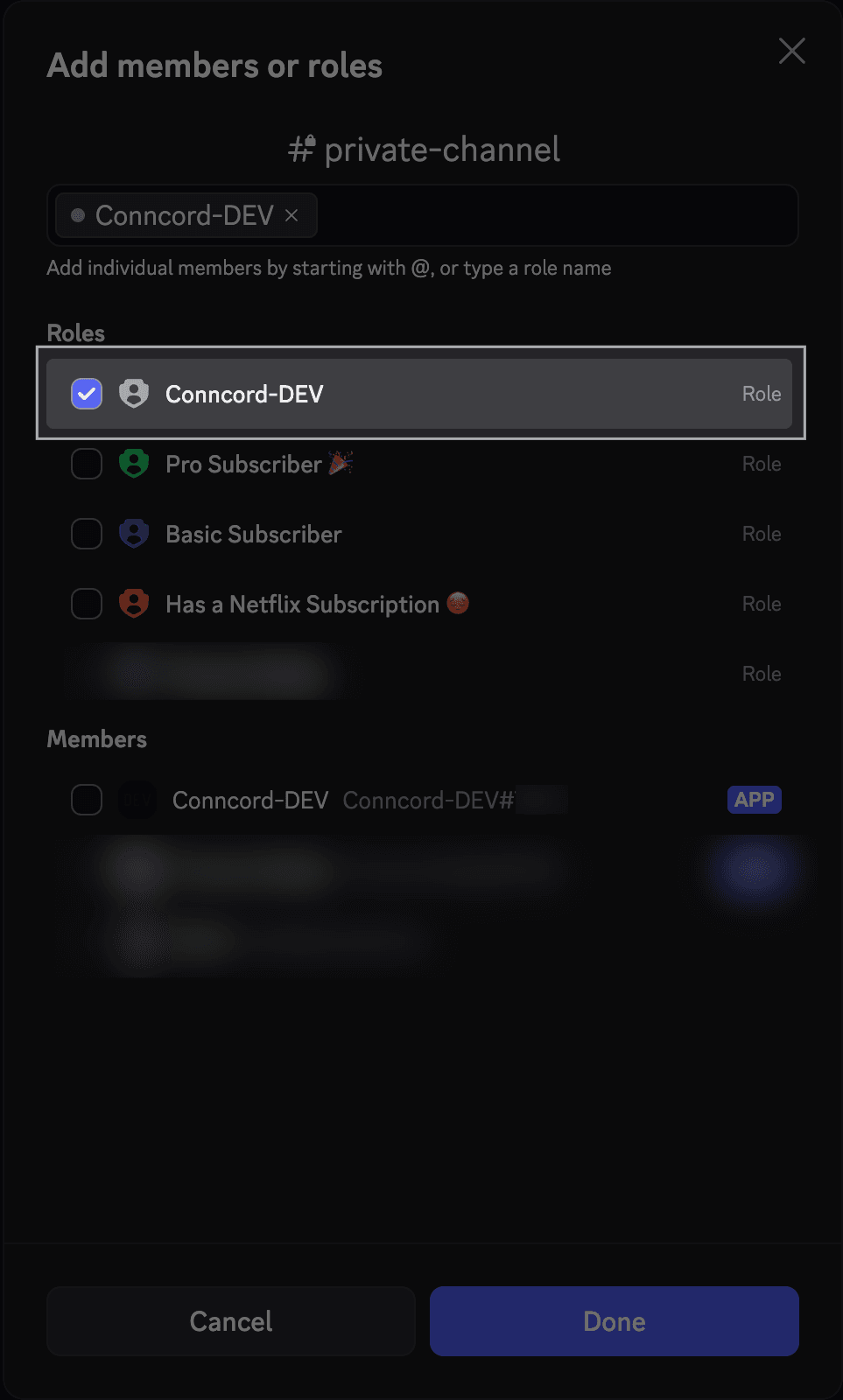
The channel is private, so Conncord can't post in it. In Discord, open the channel's settings, go to Permissions → Add members or roles, select Conncord and click Done.
MESSAGE_EMPTY
The message is empty. Discord doesn't allow empty messages. This also happens when the HubSpot property or Attio attribute used in the message is blank for that record. Add text around it so the message is never empty.
MESSAGE_TOO_LONG
Discord messages are limited to 2,000 characters. Shorten the message, and watch for long HubSpot properties or Attio attributes.
Attio errors that stop the step
A few Attio errors stop the step instead of taking the Failed path:
| Message | What to do |
|---|---|
| Couldn't reach Conncord. Attio will retry. | Nothing. Attio retries the step automatically. |
| Conncord is busy. Attio will retry. | Nothing. Another step for your account is still running, and Attio retries. |
| Unexpected response from Conncord. | Nothing. Attio retries. If it keeps happening, email support. |
| Conncord rejected the request. | Email [email protected]. |
| The Conncord app isn't configured. | Email [email protected]. |
Last updated on
Plans and billing
Conncord plans and prices for HubSpot and Attio, what counts as an action, monthly limits, the 7-day free trial, and how plan changes work.
Connect HubSpot to Conncord
Install Conncord in HubSpot: the permissions it asks for, the Discord contact properties it creates, and how to disconnect or switch to Attio.