
Assign and remove Discord roles from HubSpot workflows
Use Conncord's Assign and Unassign Discord Role actions to give or remove Discord roles when HubSpot contacts change, like when a deal closes.
The Assign Discord Role and Unassign Discord Role actions give a Discord role to a contact's Discord account, or take it away, whenever a HubSpot workflow reaches them. Use them to unlock customer channels when a deal closes, mark VIPs, or remove access when a subscription ends. They work on every Conncord plan.
Using Attio? See Assign and remove Discord roles from Attio workflows.
Before you begin
- Connect HubSpot and add the Conncord bot to your Discord server.
- Move the Conncord role above the roles you want to manage. See Let Conncord assign a role.
- The contacts need a Conncord Discord ID. Contacts get one when they join through your invite link, Layover or the welcome message. See Link Discord members to HubSpot contacts.
Create a contact-based workflow
In HubSpot, go to Automation → Workflows and create a contact-based workflow, or open one. Set any enrollment trigger, for example "Lifecycle stage is Customer".
The role actions read the Discord ID from the enrolled record, so use them in contact-based workflows.
Add the Conncord action
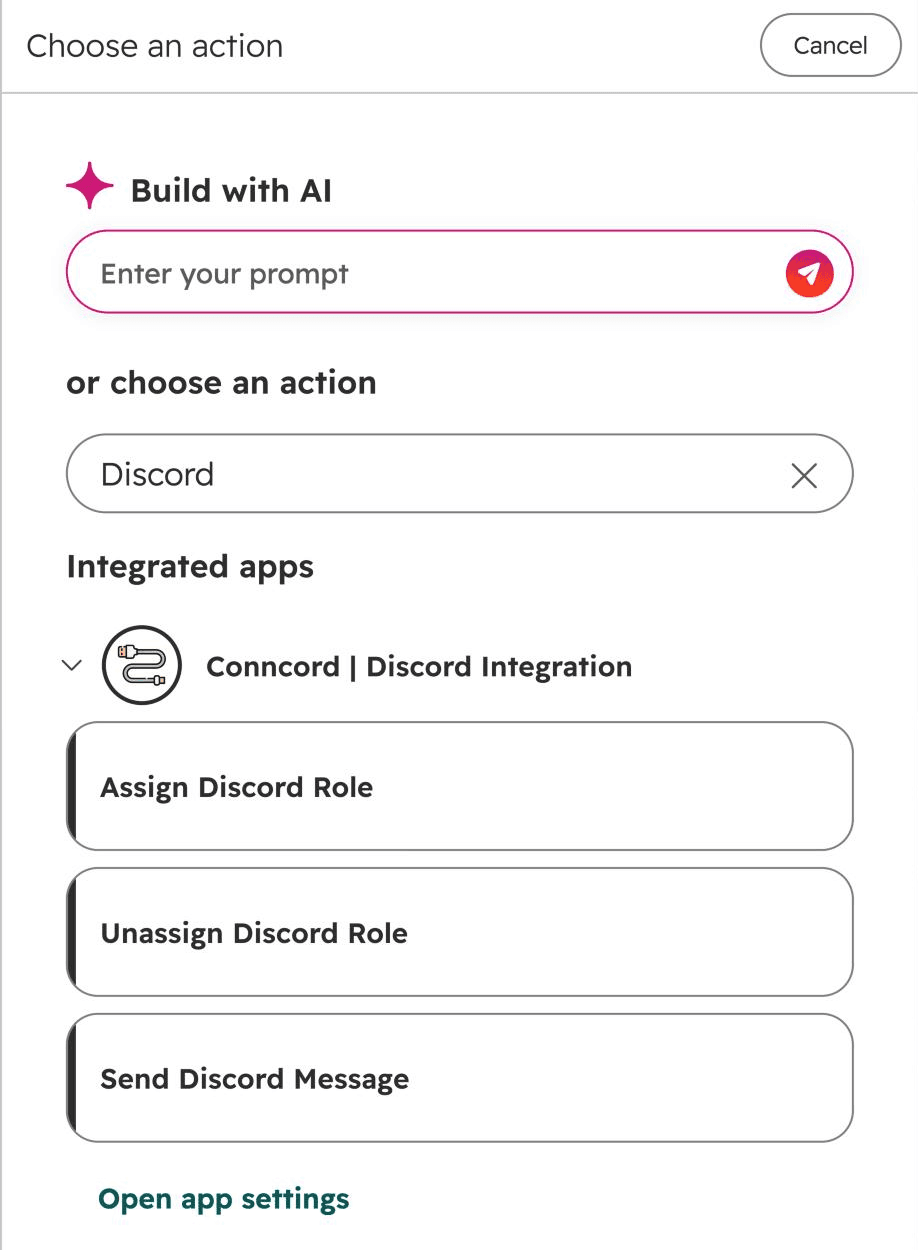
Click + to add an action. Find Conncord under the integrated apps in the action list and choose Assign Discord Role or Unassign Discord Role.
Pick the role and the Discord ID
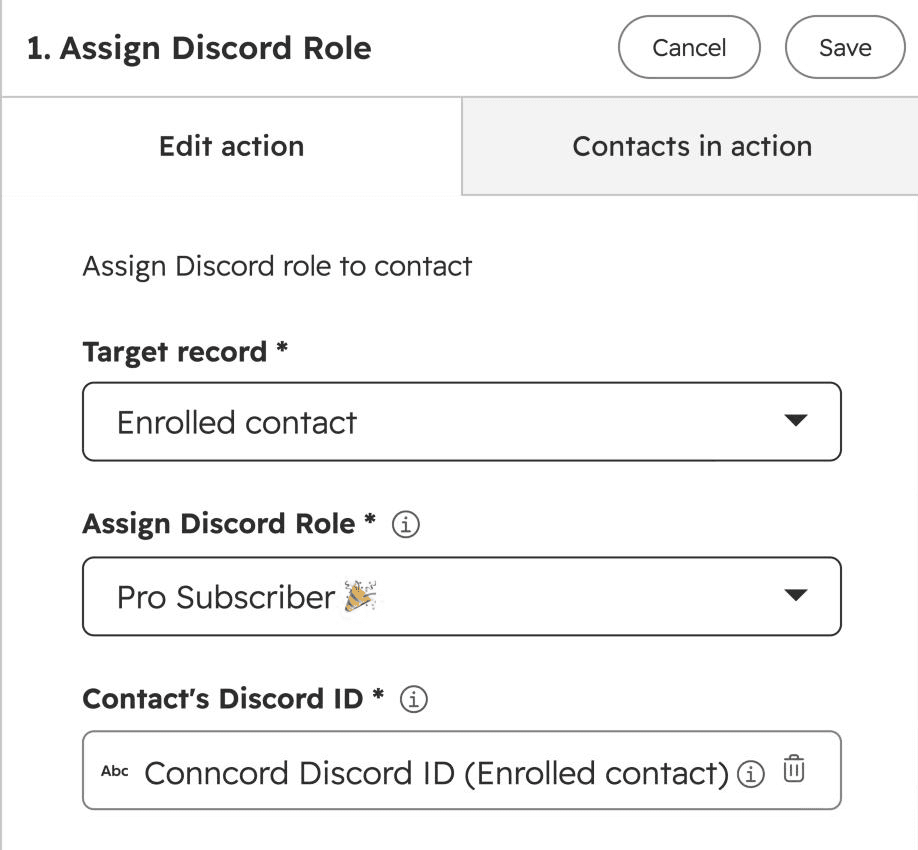
- Target record: leave it as Enrolled contact.
- Role: the Discord role to assign or remove. The list shows only roles Conncord can manage.
- Contact's Discord ID: choose the contact property Conncord Discord ID.
Save and turn on the workflow
Review and turn on the workflow. Each time a contact reaches the action, Conncord assigns or removes the role.
Don't see the role you need?
Conncord can only manage roles below its own role in your server's role list, so roles above it are hidden. In Discord, go to Server Settings → Roles and drag Conncord above the role. Roles managed by Discord or another app (bot roles, Server Booster) can't be assigned by anyone.
Examples
| Trigger | Action |
|---|---|
| Lifecycle stage becomes Customer | Assign Customer |
| Deal closed won, then a delay of 30 days | Remove Trial |
| Subscription canceled | Remove Pro Member |
| Attended a webinar | Assign Webinar Alumni |
If the action fails
The action shows as failed in the workflow history with a message that says how to fix it, and the workflow keeps going. The most common causes:
- The contact has no Conncord Discord ID (DISCORD_ID_MISSING).
- The member left your server (MEMBER_NOT_IN_SERVER).
- The role sits above Conncord's role (ROLE_ABOVE_BOT).
Branch on the errorCode output to handle failures. After you fix the problem, re-enroll the contact.
Each role change uses one action from your plan. If the member already had the role (or didn't have it, for a removal), the action succeeds without using one. See Plans and billing.
Last updated on
Send Discord messages from HubSpot workflows
Use the Conncord Send Discord Message action to post to a Discord channel from any HubSpot workflow, with HubSpot properties and mentions in the text.
Link Discord members to HubSpot contacts
Match Discord server members to HubSpot contacts with Conncord's invite link, Layover and welcome message, including personalized links in HubSpot emails.