
Send Discord messages from Attio workflows
Add Conncord's Send Discord message step to an Attio workflow to post to a Discord channel, with record attributes in the text.
The Send Discord message step posts a message to a channel in your Discord server whenever an Attio workflow reaches it. Use it to celebrate closed deals, announce new customers, or alert your team when a record changes. It works with any workflow trigger, and on every Conncord plan.
Using HubSpot? See Send Discord messages from HubSpot workflows.
Before you begin
Connect Attio and add the Conncord bot to your Discord server.
Create or open a workflow
In Attio, go to Workflows and click New workflow, or open an existing one. Choose a trigger, for example a record being created or an attribute changing.
Add the Conncord step
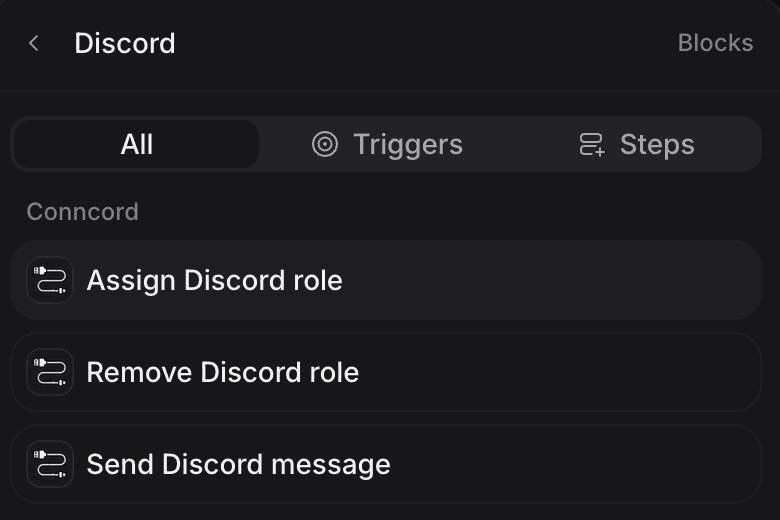
Click Add block, search for "Discord", and choose Send Discord message under Conncord.
Pick a channel and write the message
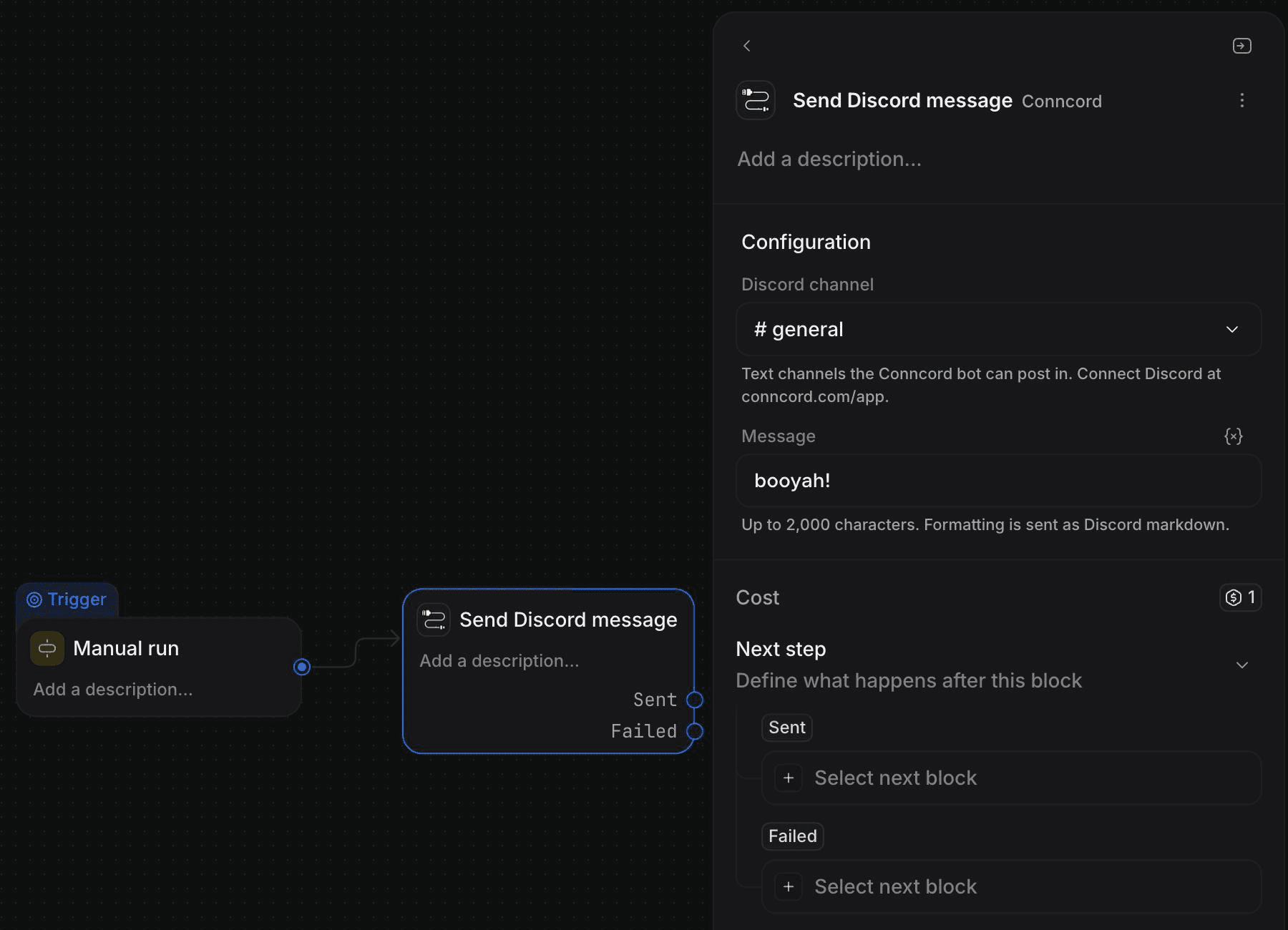
- Discord channel: the channel to post in. The list shows only text channels Conncord can post in.
- Message: the text to send. Insert record attributes from earlier blocks, for example the deal name or the person's company.
Handle failures (optional)
The step has two paths: Sent and Failed. Connect a block to Failed to handle problems, for example to create a task for your team. The Failed path outputs error_code and error_message.
Publish the workflow
Publish the workflow and make sure it's Live. Each time a record reaches the step, Conncord posts the message.
Don't see the channel you need?
The list only shows channels Conncord can post in. For a private channel, open its settings in Discord, go to Permissions → Add members or roles, and add Conncord. See Discord bot setup. If the list is empty, check that Attio and Discord are both connected in your dashboard.
Formatting and mentions
Formatting in the message field, such as bold, italic, lists and links, is sent to Discord as Discord markdown. Headings aren't available. Messages can be up to 2,000 characters, including the values of any attributes you insert.
| To mention | Write | Example |
|---|---|---|
| A member | <@DISCORD_ID> | <@ + the person's Conncord Discord ID attribute + > |
| A role | <@&ROLE_ID> | <@&1286943609211588629> |
To find a role ID, turn on Developer Mode in Discord (User Settings → Advanced), then right-click the role and click Copy Role ID.
@everyone and @here never ping anyone when Conncord posts them.
If the step fails
The step takes the Failed path with a message that says how to fix it. After you fix the problem, run the workflow again for that record. See Workflow errors.
If Conncord or Discord is briefly unavailable, Attio retries the step automatically. Each run sends the message only once.
Each message sent uses one action from your plan, and costs one Attio workflow credit. Failed steps don't use a Conncord action. See Plans and billing.
Last updated on
Connect Attio to Conncord
Connect your Attio workspace to Conncord to add Discord workflow steps, see the person attributes it creates, and learn how to disconnect.
Assign and remove Discord roles from Attio workflows
Add Conncord's Assign and Remove Discord role steps to Attio workflows to give or take away Discord roles for a person, like when a deal is won.