
Connect HubSpot to Conncord
Install Conncord in HubSpot: the permissions it asks for, the Discord contact properties it creates, and how to disconnect or switch to Attio.
Conncord is a HubSpot Marketplace app. Connecting it adds three Conncord workflow actions to HubSpot and creates the contact properties Conncord uses to link Discord members to contacts.
Before you begin
You need to be a HubSpot admin (or have permission to install apps) and to have a Conncord account.
Start from your dashboard
In your Conncord dashboard, open Connect your CRM and click Connect HubSpot.
Choose your HubSpot account
Sign in to HubSpot if asked, select the account you want to connect, and click Choose Account.
Approve the permissions
Review the permissions and click Connect app. HubSpot installs Conncord and sends you back to your dashboard, where step 1 shows Connected.
Connect Discord
If you haven't yet, add the Conncord bot to your Discord server.
Permissions Conncord asks for
| Permission | Why |
|---|---|
| Read and write contacts | Find, create and update the contacts Discord members are linked to |
| Read and write contact properties | Create the Conncord contact properties |
| Tickets (optional) | Create and update tickets for Ticket Sync. Granted when you turn on Ticket Sync |
| Basic account information | Identify your HubSpot account |
Contact properties Conncord creates
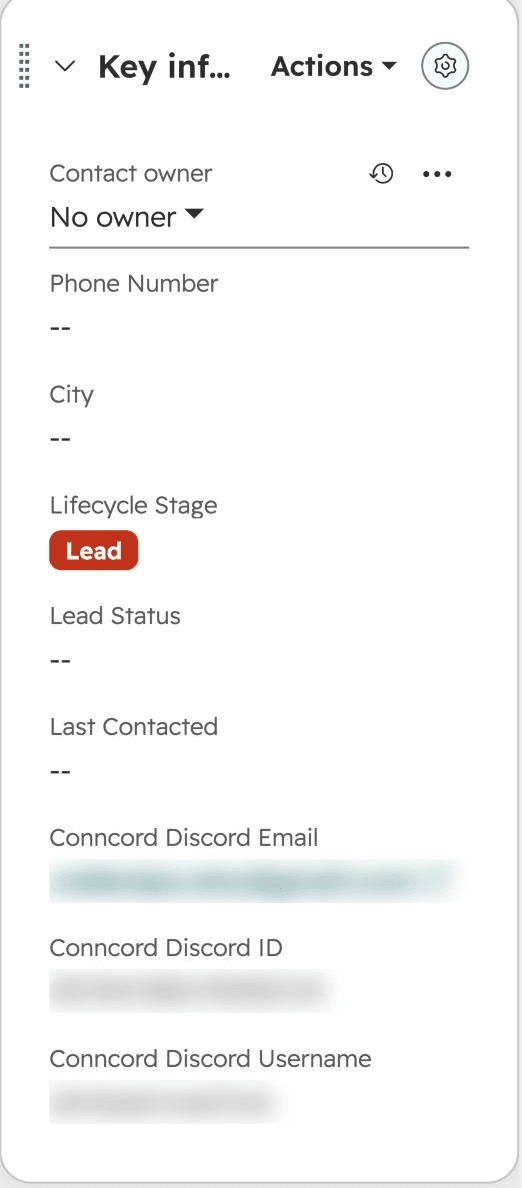
Conncord creates these properties in a Conncord Properties group. Use them in lists, filters, reports and workflows.
| Property | Internal name | Value |
|---|---|---|
| Conncord Discord ID | conncord_discord_id | The member's Discord user ID |
| Conncord Discord Username | conncord_discord_username | The member's Discord username |
| Conncord Discord Email | conncord_discord_email | The verified email on the member's Discord account |
With Ticket Sync, Conncord also creates a ticket property, Conncord Discord Thread ID (conncord_discord_thread_id).
Disconnect HubSpot
In your dashboard, open Connect HubSpot and click Disconnect. Until you connect a CRM again, Conncord pauses:
- Conncord actions in your HubSpot workflows
- Linking Discord members to contacts
- Ticket Sync
Your Discord bot and server, branding, Layover page and welcome message stay the same. To use Attio instead, disconnect HubSpot and connect Attio.
Next steps
Last updated on
Workflow errors
What each Conncord error code means in HubSpot workflow actions and Attio workflow steps, and how to fix it.
Send Discord messages from HubSpot workflows
Use the Conncord Send Discord Message action to post to a Discord channel from any HubSpot workflow, with HubSpot properties and mentions in the text.