
Link Discord members to HubSpot contacts
Match Discord server members to HubSpot contacts with Conncord's invite link, Layover and welcome message, including personalized links in HubSpot emails.
Conncord links each Discord member in your server to a HubSpot contact. It saves their Discord ID, username and verified email on the contact, so you can segment by Discord membership and use the role actions on them.
Member linking is included in the trial, Pro and Scale plans.
Three ways members get linked
| Way | Who it's for |
|---|---|
| Your invite link | People you invite, from HubSpot emails, your website or anywhere else |
| Layover | An optional branded page in front of your invite link, which can ask for an email |
| Welcome message | People who join your server some other way. They click Register |
Your invite link
Your dashboard shows Your Discord invite link once HubSpot and Discord are connected. Click Copy to copy it, and Try it to test it.
It looks like this:
https://conncord.com/match/hubspot?hid=<YOUR HUBSPOT ACCOUNT ID>&cid={{ personalization_token('contact.hs_object_id', '') }}When someone opens it, they sign in with Discord, Conncord adds them to your server, and links them to a HubSpot contact.
Use it in HubSpot emails
The end of the link is a HubSpot personalization token. In a HubSpot marketing email or a workflow email, HubSpot replaces it with the recipient's contact ID, so the member is linked to exactly that contact, whatever email their Discord account uses.
Paste the full link as the URL of a button or a text link in your email.
This is the best way to link the members you already have: email your contacts an invitation, and those who join through it are linked to their contacts.
Use it anywhere else
On your website, in social posts, in QR codes or in other tools, the token isn't filled in and Conncord ignores it. You can also remove it to get a shorter link:
https://conncord.com/match/hubspot?hid=<YOUR HUBSPOT ACCOUNT ID>Without a contact ID, Conncord matches people by email, as described below.
Which contact a member is linked to
Conncord picks the contact in this order:
- The contact from a personalized invite link in a HubSpot email.
- The oldest contact with the email they entered on Layover or in the welcome message.
- The oldest contact with their Discord email, if Discord has verified it.
- Otherwise, a new contact. Its first name is their Discord username until they enter a name.
Conncord fills in the email and name only where the contact's fields are empty, and never overwrites existing data.
A Discord member is linked to one contact at a time, and a contact to one member. If a member is linked to a different contact later, Conncord clears the Discord properties on the old one.
What Conncord saves on the contact
| Property | Value |
|---|---|
| Conncord Discord ID | The member's Discord user ID. Use it in the role actions |
| Conncord Discord Username | The member's Discord username |
| Conncord Discord Email | The member's Discord email, saved only if Discord has verified it |
See Contact properties Conncord creates.
Linked members in your dashboard
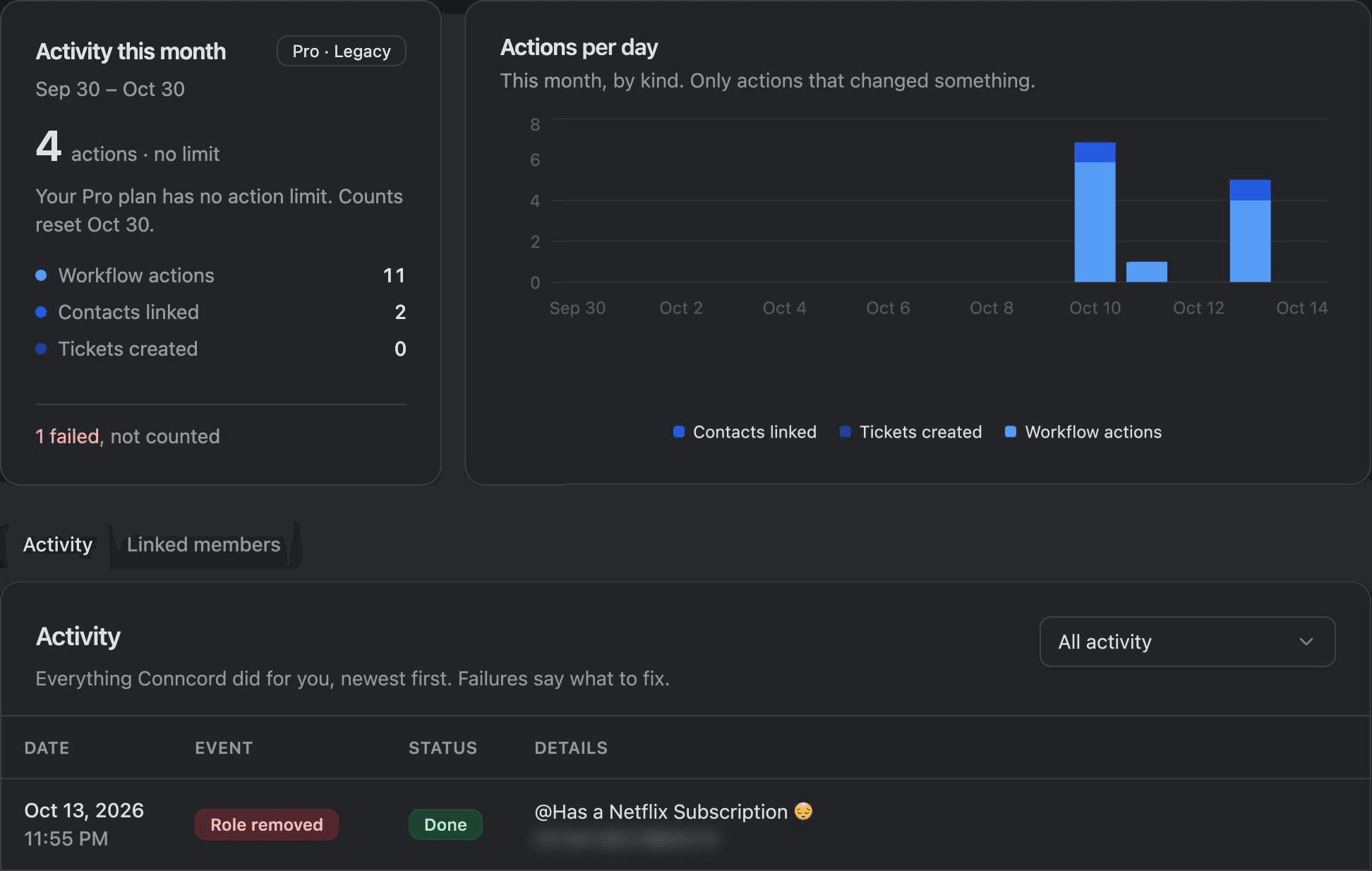
The Activity page lists each link as Contact linked or Contact relinked, and the Linked members tab shows every member with how they joined and whether they're still in your server.
Pending links
Members always join your server, even when Conncord can't update HubSpot right away. Their link waits as Pending sync and is saved to HubSpot automatically, within about 10 minutes of the problem being fixed, when:
- Your plan doesn't include member linking (Starter). It syncs when you move to Pro or Scale.
- Your plan's actions for the month are used up.
- HubSpot is disconnected.
- HubSpot is temporarily unavailable.
Each link uses one action from your plan. See Plans and billing.
Members who leave and rejoin
When a member leaves your server, they stay linked to their contact and show as Left server. If they rejoin, they're marked back in, and they don't get the welcome message again.
Last updated on
Assign and remove Discord roles from HubSpot workflows
Use Conncord's Assign and Unassign Discord Role actions to give or remove Discord roles when HubSpot contacts change, like when a deal closes.
Ticket Sync: Discord forum posts to HubSpot tickets
Turn Discord forum posts into HubSpot tickets with Conncord Ticket Sync, link posters to contacts, and keep ticket stages and forum tags in sync.